
Vesta Music Express Tutorials / Platform guide
Vesta Music Admin Support Tickets Tutorial
This is an in-depth tutorial for the admin support ticket system of Vesta Music Express.

By Vesta Music Corporation
· 6 steps · 10 min
Open a user ticket
Learn how to reply to user tickets, update their status and escalate issues to Vesta Support.
Before you start Sign in and select Admin view. Screenshots show the demo account.
Click Support in the sidebar. In User tickets, select a ticket to open the conversation. Use the search field to find a ticket by reference or subject.
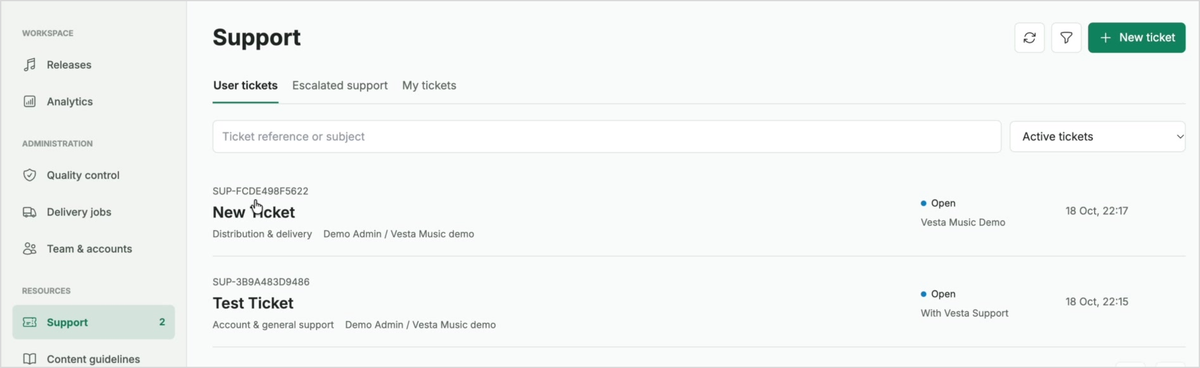
Support shows the ticket list and search controls. Reply to the requester
Read the conversation, then enter your message under Reply and click Send reply. Replies here are visible to the user, admins and Vesta Support. Use the paperclip if you need to attach a file.
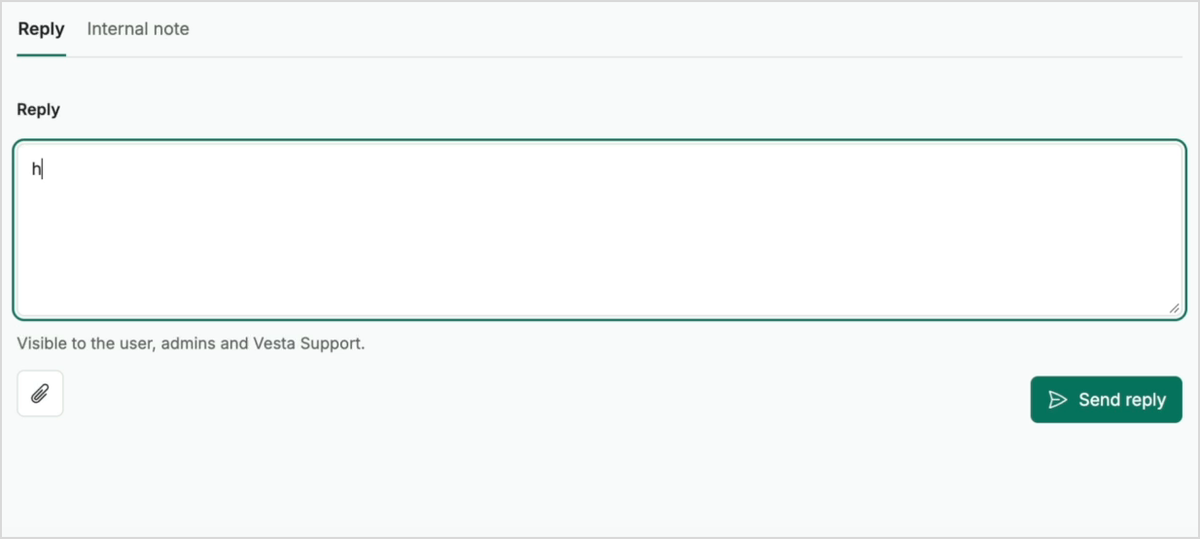
Write your response in the Reply tab and send it. Update the ticket details
Use the right panel to change Status and Priority. Choose an Assignee, or use Assign to me when appropriate. Click Save changes to apply your updates.
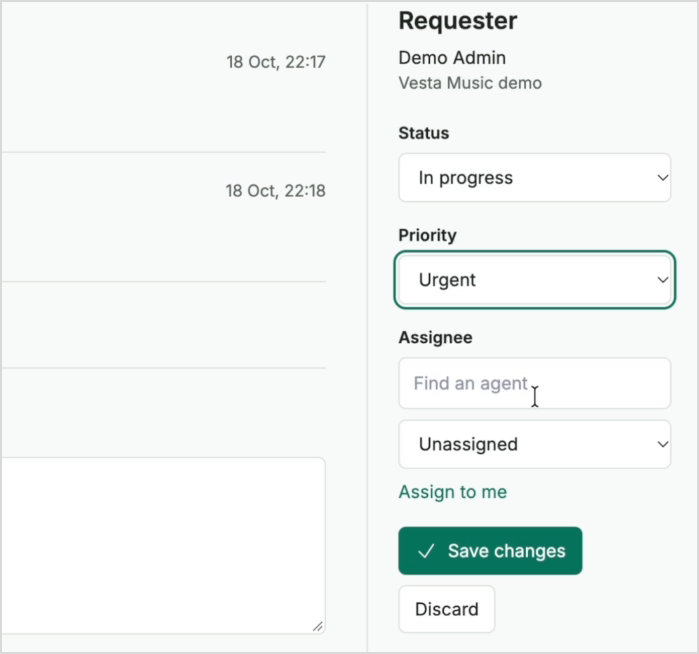
The right panel contains status, priority, assignment and Save changes. Escalate an issue to Vesta
If you need help, click Escalate to Vesta under Agent tools. Enter a private message explaining the issue and what you have tried, then click Send escalation.
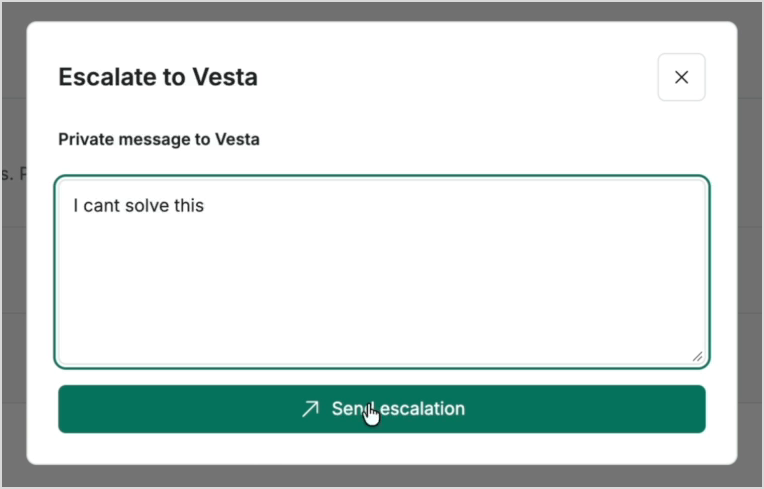
The escalation dialog sends a private message to Vesta. Follow up on the escalation
In the Vesta Support conversation, write a message under Reply and click Send reply. This conversation is visible to the admin team and Vesta Support. Click Original user ticket to return to the user conversation.
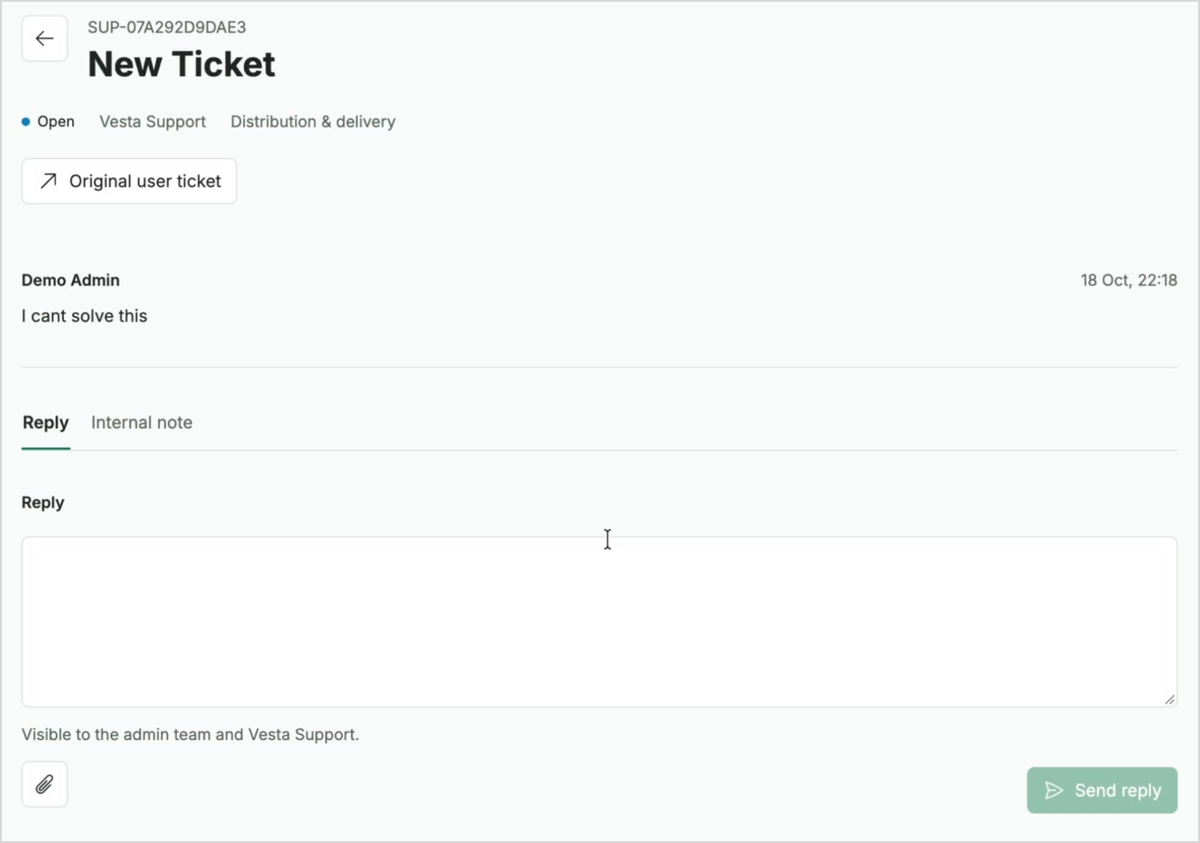
The escalation has its own conversation and a link back to the original ticket. Resolve the original ticket
Once the issue is resolved, return to the original ticket, set Status to Resolved and click Save changes. Back in Support, choose All statuses to find resolved tickets as well as active ones.
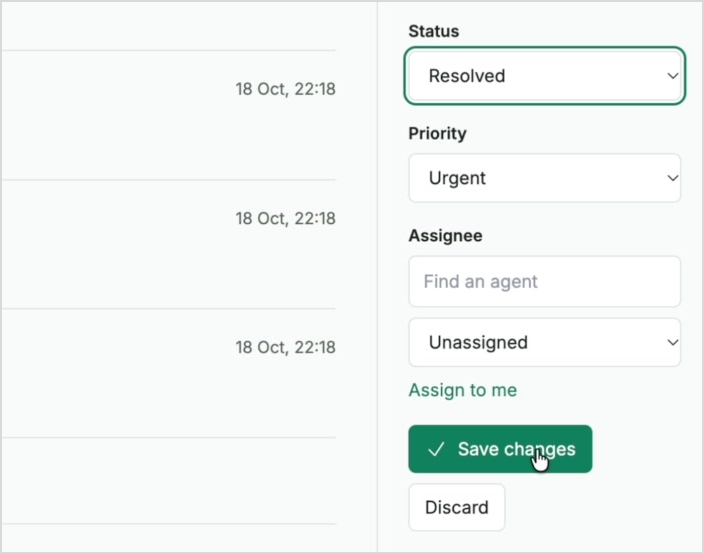
Select Resolved and save the change before returning to the ticket list.
You’re ready for the next step.
Need a hand with this guide? Talk to the Vesta team.